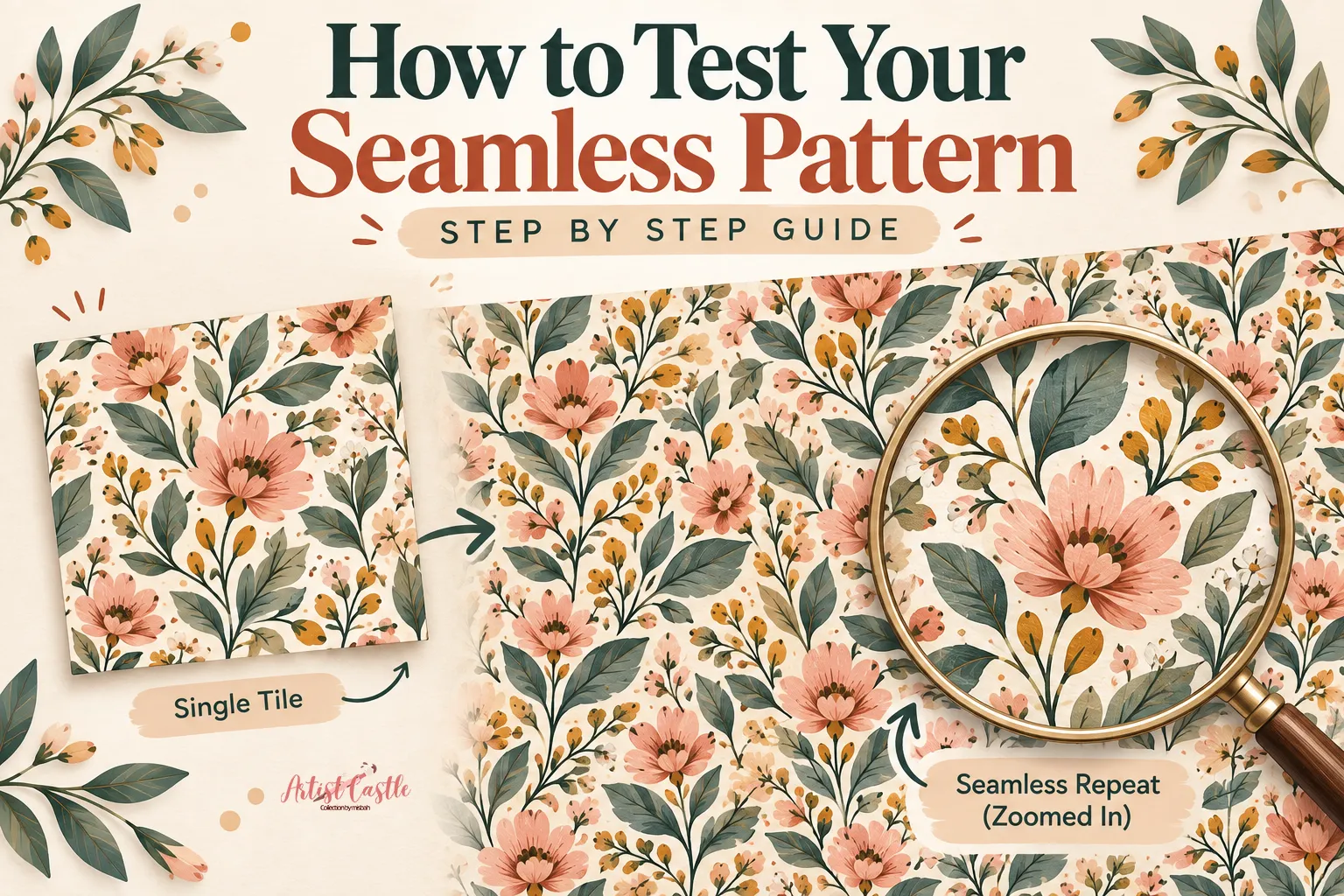
Your tile looks perfect on screen. But before you upload or print it, knowing how to test a seamless pattern can help you catch problems a single tile can’t show you.
This isn’t about why patterns break — you can find that elsewhere on this site. It’s about the final check before you hit upload: which free tool to use, how to run the test properly, and what to do once you know what the test found.
What a Pattern Test Actually Tells You
A pattern tester shows you two different things, and it’s worth knowing which one you’re looking at. First, whether the tile actually tiles — no gaps, no misaligned edges, nothing cut off at the border. Second, whether it looks good tiled — no obvious stripes, no diagonal lines your eye keeps snagging on, no single motif that jumps out every time it repeats. A tile can pass the first test and fail the second one; matching edges don’t guarantee a balanced repeat. (If that’s the problem you’re running into, Why Does My Seamless Pattern Look Repetitive? covers it in depth — this article is just about catching it.)
Most basic testers focus on repeat quality rather than fully validating production size. Some provide scale estimates, but final print dimensions still need to be checked against your file’s pixels and required DPI.
5 Free Seamless Pattern Testers, Compared
All five run in your browser, cost nothing to test a single tile, and don’t require you to install anything. Here’s how they actually differ — verified against each tool’s current page, not marketing copy.
| Tool | Cost | Repeat modes | File formats | Notable feature | Limitation |
|---|---|---|---|---|---|
| Esther Nariyoshi Pattern Repeat Tester | Free, no account | Straight, half-drop vertical, half-drop horizontal (brick) | PNG, JPG, SVG | Saves the preview as a PNG at 2x resolution; built to accept exports from Procreate, Photoshop, Illustrator, or Canva | No print-size or DPI readout |
| ArtboardLab Seamless Pattern Checker | Free, no account | Full, half-drop, half-brick | JPEG, PNG, WebP, GIF | Junction magnifier + tile-boundary toggle for a close look at exactly where tiles meet; handles oversized files without choking | Ad-supported page |
| The Pigeon Letters Pattern Repeat Tester | Free | Full drop, half drop, brick | PNG, JPG, TIFF | Background color swap alongside the scale slider; runs entirely client-side | No print-size readout |
| Printable Pretty Seamless Pattern Tester | Free, no login | Full drop, half drop, half brick | JPG, PNG, WebP | Shows an estimated print size at 300 DPI as you test | Newer, less established tool |
| Bardot Brush Repeating Pattern Tester | Free | Not specified | Not specified | Built specifically for dragging a flattened Procreate layer straight into an iPad Split View browser window | Fewer documented controls than the others |
A few honest notes on top of the table. Esther Nariyoshi’s tool is a strong all-round default — three repeat modes, SVG support most of the others don’t offer, and it’s explicitly built to take exports from any major design app, not just Procreate. ArtboardLab is the most thorough if you want to actually inspect a seam closely rather than just eyeball the repeat — the junction magnifier is built for that. The Pigeon Letters and Printable Pretty are both good, no-friction options if you just want a fast answer. Bardot Brush doesn’t document a repeat-mode switcher the way the others do, so if you specifically need to test a half-drop or brick layout, check one of the other four instead.
If you’re testing a full collection rather than one tile at a time, PatternPAL is worth a separate look. Its free tier (no card required) covers full drop, half drop, and half brick testing one pattern at a time with a 150 DPI JPG export. The paid tier, PatternPAL Pro ($7.99/month), adds a Seam Inspector that zooms to 800% and additional export options at 150 or 300 DPI in PNG, JPG, or TIFF.. It’s a different tool for a different job — worth knowing about, but not a straightforward swap for the five above.
How to Test Your Seamless Pattern Step by Step
The steps are the same no matter which tool you pick.
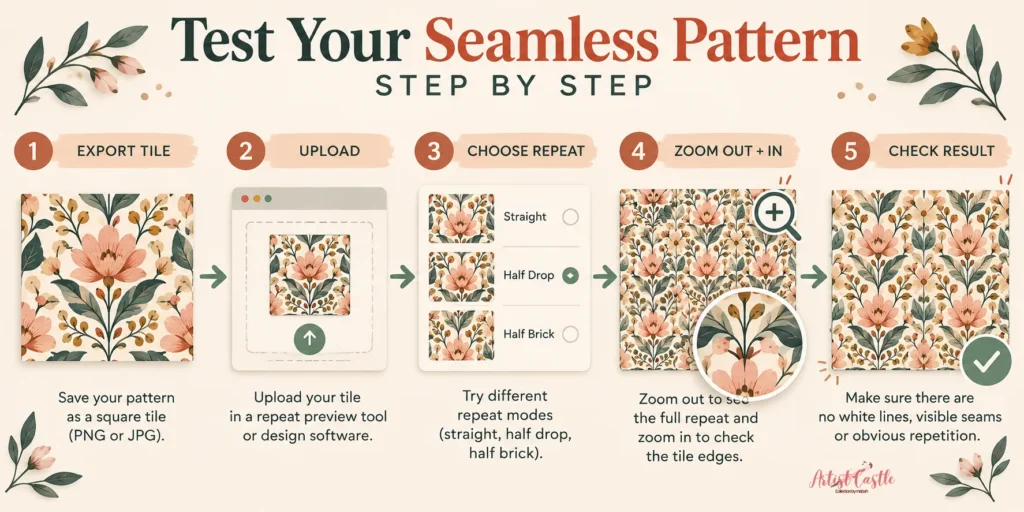
- Export your tile the way you’ll actually use it. Test the real file — the PNG or JPG you’re about to upload — not a screenshot or a resized copy. If you’re not sure what size or resolution to export at, our DPI, PPI & pixel math guide covers that before you get here.
- Upload or drag it into a tester. Most of the five above accept a simple drag-and-drop. If you’re on an iPad working in Procreate, Bardot Brush’s tool is built specifically for dragging a flattened layer in from Split View.
- Set the repeat mode you’ll actually use. If your final piece is going to be a half-drop, test it as a half-drop — a straight-grid preview won’t show you the diagonal issues a half-drop can introduce.
- Zoom out first, then zoom into the seams. Zooming out shows you the overall rhythm — stripes, obvious diagonals, anything that reads as a repeating hole. Zooming in on the actual seam lines is where you catch gaps, misalignment, or a color jump right at the edge.
- Save the result. If your chosen tester offers preview export, save a copy — it’s a useful reference if you make changes and want to compare before and after, or if you’re sending a file off for approval.
What Your Test Result Means (and Where to Go Next)
The test itself doesn’t fix anything — it just tells you where to look next. Here’s what each common result points to:
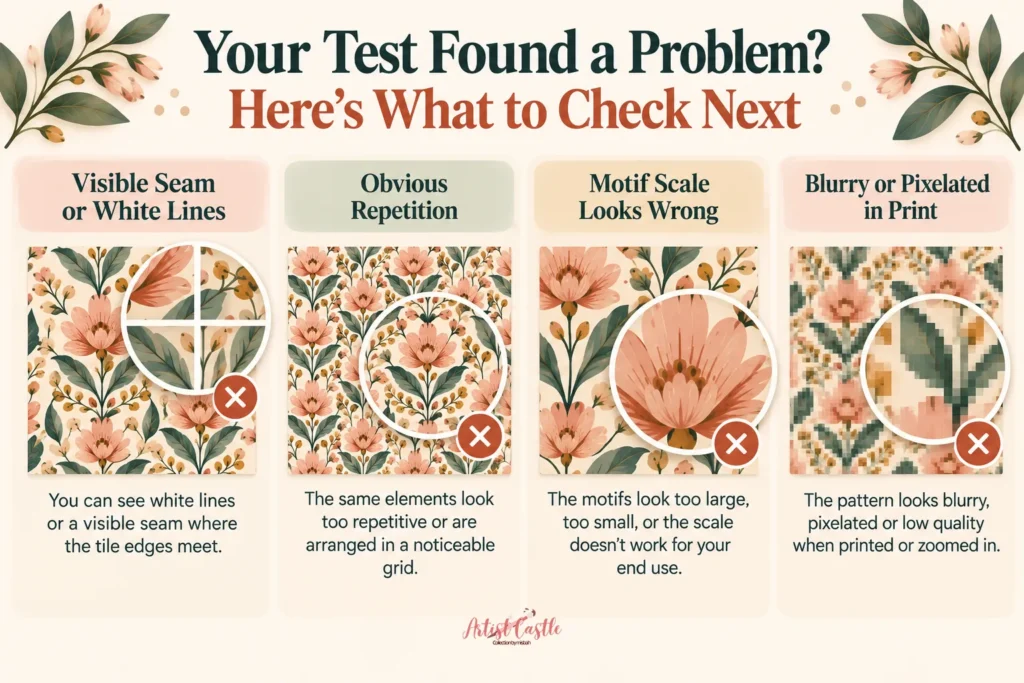
A visible line, gap, or hairline seam where the tile meets itself. This usually points to an edge, alignment, cropping, or export issue. → Why Does My Seamless Pattern Have White Lines? Causes & Fixes for Every Tool
Edges match perfectly, but tiled out it still reads as obviously repetitive — stripes, diagonal tracking, one motif that keeps catching your eye. → Why Does My Seamless Pattern Look Repetitive? How to Fix an Obvious Repeat
Motifs look crowded, sparse, or oddly scaled once you see them repeated at real size. → Pattern Repeat Size vs. Motif Scale: How Big Should Your Design Be?
The repeat looks clean, but you’re not confident it’ll come out the right physical size once printed. A tester checks the tiling, not your file’s DPI or pixel dimensions relative to your intended print size — that’s a separate calculation. → Seamless Pattern Size for Fabric Printing: DPI, PPI & Pixel Math Explained
Testing From Procreate, Photoshop, or Illustrator
If you’re not working in a browser to begin with, you’ve got native options too. On iPad, the Split View workflow — Safari on one side, Procreate on the other — lets you drag a flattened layer straight into any of the browser testers above; Bardot Brush’s tool is built around exactly that. In Photoshop, View > Pattern Preview gives you a live tiled view without leaving the app. In Illustrator, defining your artwork as a pattern swatch and checking it through the Pattern Options panel does the same thing. Either way, it’s worth cross-checking with a browser tester too — what you see in your working file isn’t always identical to what’s in the exported version.
FAQ
Is there a free way to test a seamless pattern without Photoshop?
Yes — all five tools above work entirely in a browser and don’t require any design software. Esther Nariyoshi’s tool, ArtboardLab, The Pigeon Letters, and Printable Pretty are all free with no account needed.
Can I test a seamless pattern on my iPad without a computer?
Yes. Use Split View to put Safari next to Procreate, then drag a flattened pattern layer straight into a browser tester. Bardot Brush’s tool is specifically built for this workflow.
Do half-drop and brick repeats need to be tested differently than straight repeats?
Yes — always test in the actual repeat mode you’re going to use. A pattern that looks clean as a straight grid can introduce new diagonal tracking once you switch to a half-drop, since the offset creates a different relationship between tiles.
What file size should I upload to an online pattern tester?
Use your actual export file rather than a scaled-down copy, since resizing can hide or introduce seam issues that won’t show up in your final upload. If your tile is very large, ArtboardLab automatically works from a smaller preview copy for smooth zooming without needing you to downsize anything yourself first.