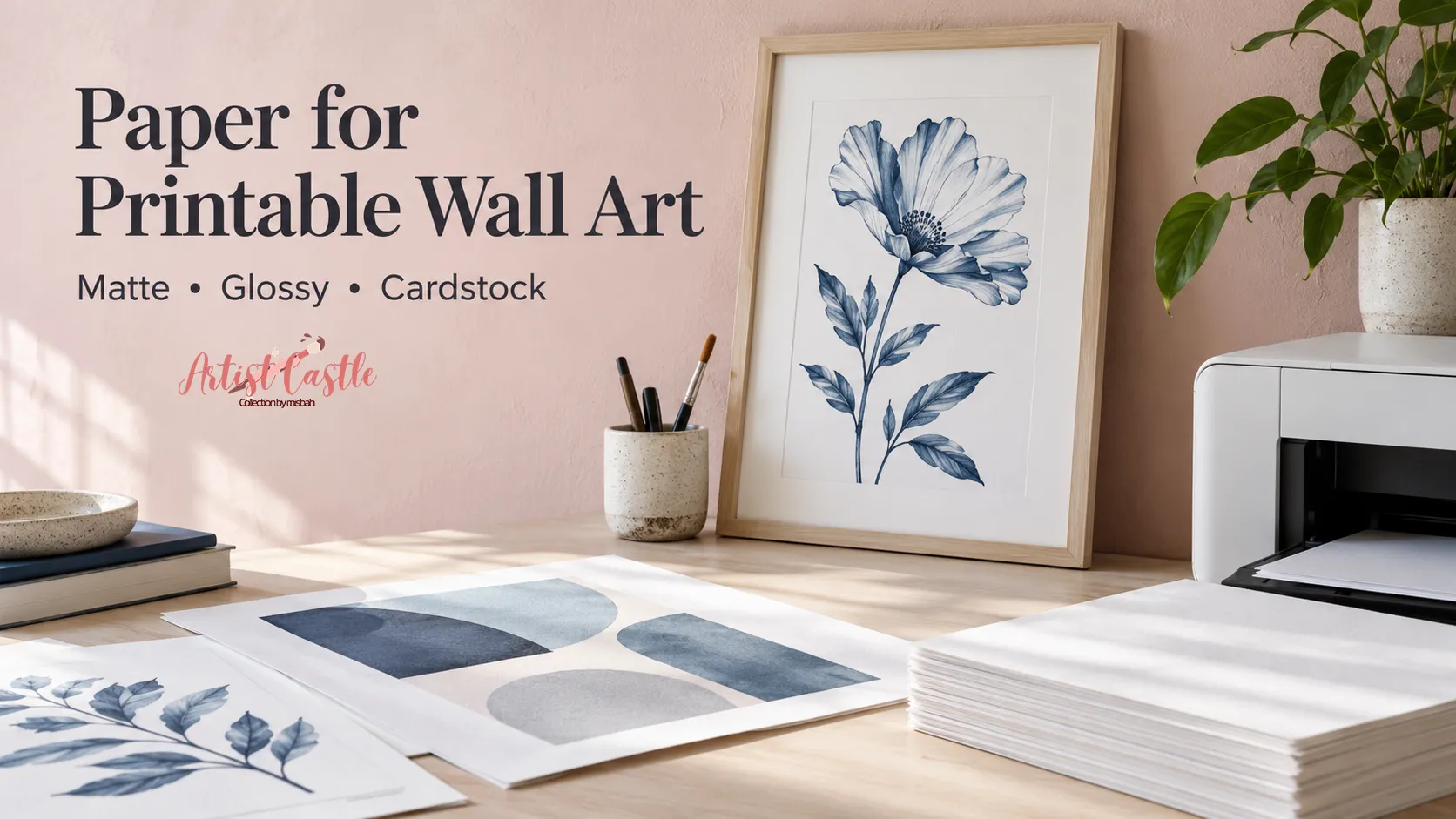
Short answer: For most home-printed wall art, start with a matte photo paper made for your type of printer, then use the media setting recommended for that paper. Choose glossy, semi-gloss, or luster when you want richer, shinier color. Choose cardstock only if your printer’s manual says it can handle that stock. Results depend on the specific stock, its coating, your printer, and your settings.
No paper wins everywhere. Printers, papers, and artwork all vary, so this guide gives you a starting point and shows you what to check in your own manual.
Matte, glossy, or cardstock: a quick comparison
These are general characteristics, not test results. Your printer and the exact paper change the outcome.
Matte photo paper
Good fit: Typography, illustrations, soft or muted palettes, art you’ll hang in a bright room.
Things to watch: Surfaces and coatings vary by brand.
Check first: Is it made for your printer type (inkjet or laser)? Which media setting does it recommend?
Glossy, semi-gloss, or luster photo paper
Good fit: Photo-like images and saturated, high-contrast art.
Things to watch: Shinier surfaces reflect more light and show fingerprints more easily.
Check first: The media setting recommended for that specific paper and printer. Glossy, semi-gloss, and luster may need different settings.
Inkjet-coated cardstock
Good fit: Casual displays, bold graphics, kids’ art.
Things to watch: Quality varies by stock and coating.
Check first: Does the packaging say it’s made for your printer type? Can your printer feed that thickness, and from which tray?
Uncoated craft cardstock
Good fit: Cards, crafts, draft prints.
Things to watch: It may not be designed for inkjet inks, and finishes vary widely.
Check first: Does the packaging say it’s compatible with your printer?
Plain printer paper
Good fit: Draft prints to check cropping and layout.
Things to watch: Thin, and not designed for display.
Check first: Select the plain-paper setting.
If you’re also printing digital papers for scrapbooking or crafts, what digital paper is and how to use it covers that side.
Paper weight: use the manufacturer’s gsm
Paper weight labels cause a lot of confusion. Grams per square meter (gsm) measures mass per area, not thickness. Two papers with the same gsm can differ in thickness. In the US, pound ratings depend on the paper category, so the numbers aren’t directly comparable across categories.
Use the gsm the manufacturer prints for that exact product, and compare it with your printer’s stated limits. Some manuals also state a thickness limit, so check whether yours gives a weight limit, a thickness limit, or both.
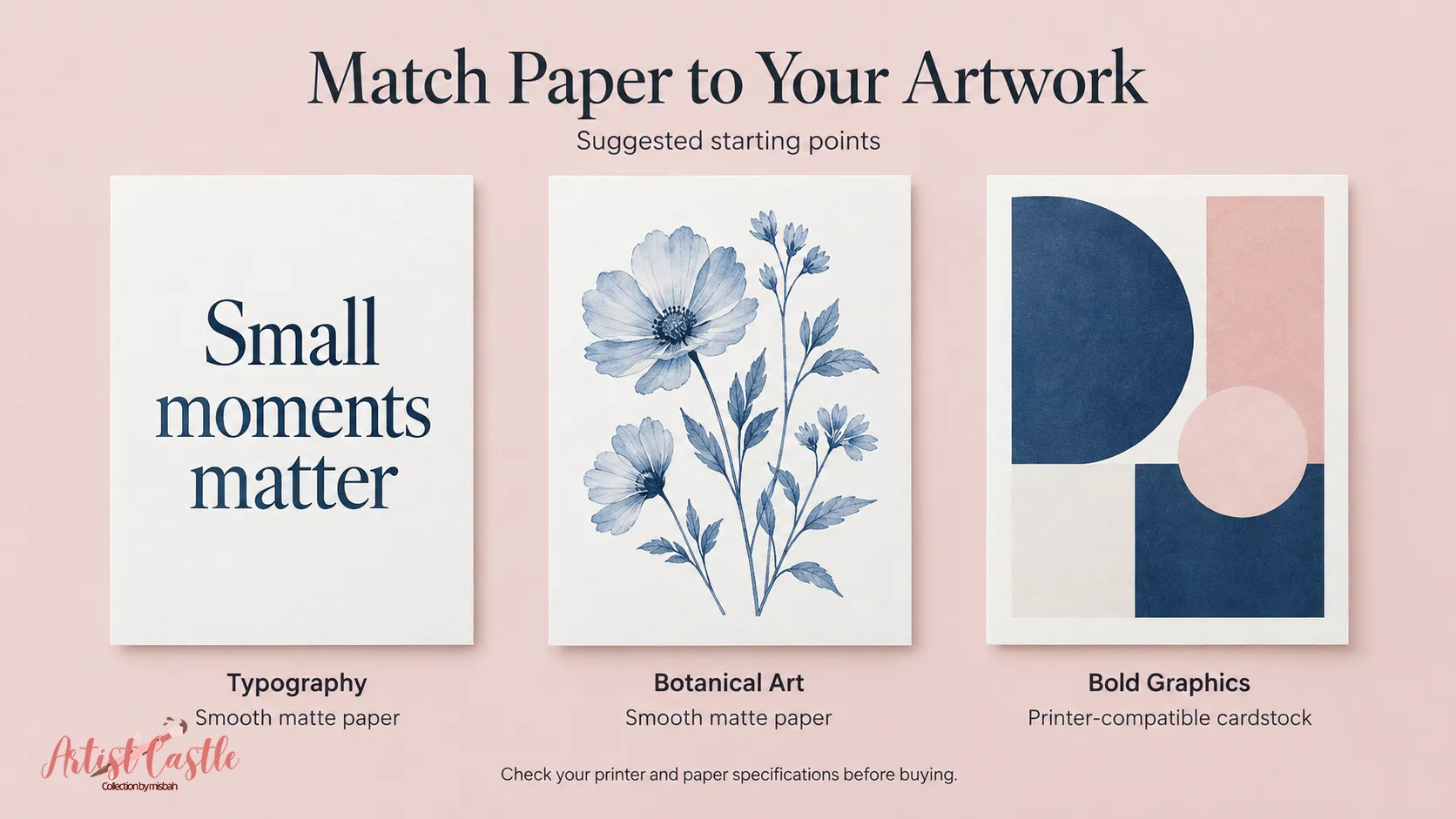
Matching paper to your artwork
These are recommendations, not test results:
- Quote and typography prints: Matte is a sensible starting point because it tends to reflect less light, which helps text stay readable.
- Illustrations and botanicals: Matte works well for soft palettes. Semi-gloss or luster can suit richer colors.
- Watercolor or painterly styles: Matte suits a gentle look. Specialty textured art papers exist, but only use ones your printer’s documentation supports.
- Bold, flat graphics or kids’ art: Cardstock made for your printer type can be an option for casual display, depending on the stock and your printer.
- Photo-like images: Glossy, semi-gloss, or luster papers are designed for this kind of tonal detail.
Will your printer take it? Check before you buy
Compatibility depends on your specific printer and paper, so avoid universal rules about trays, weights, or cardstock.
Inkjet vs. laser. Photo paper made for inkjet isn’t automatically right for a laser printer. HP’s guidance for its laser printer series says not to use inkjet photo paper.
Quick check:
- Find your model’s paper specifications in its manual: supported paper types, weight or thickness limits, and which tray or feed path to use.
- Read the paper’s packaging for printer type (inkjet or laser), gsm, and any recommended settings.
- Choose the media setting recommended for that specific paper and printer. HP says the paper type setting helps the printer apply ink properly to the loaded paper, and that available options vary by printer model, driver, and app.
- Print a single sheet first, not a full stack.
Printing an 8×10 on US Letter paper
1. Check your file’s ratio
An 8×10 print is a 4:5 ratio. Files at other ratios need adjusting:
- 4:5 sizes: 4×5, 8×10, 16×20
- 2:3 sizes: 4×6, 8×12, 12×18
- 3:4 sizes: 6×8, 9×12, 12×16
- Other ratios: 11×14 (11:14) and 5×7 (5:7) each have their own ratios, so they need cropping or borders to fit 8×10.
A 2:3 file won’t fill an 8×10 without changes. You can crop it (an 8×12 file loses 2 inches along the long side), or add borders. A full 2:3 image scaled to fit the 10-inch height is about 6⅔ inches wide, leaving roughly 1⅓ inches of extra width to fill with a border.
2. A simple pixel check
Pixels per inch (PPI) describes how many pixels print across each inch. As a simple example, an 8×10 print at 300 PPI needs a file of 2400 × 3000 pixels (8 × 300 by 10 × 300). A smaller file printed at 8×10 spreads fewer pixels per inch, which can look softer.
Enough pixels don’t guarantee sharp source artwork, and changing a file’s resolution metadata alone doesn’t add detail.
3. Fit the image into an 8×10-inch area
For a JPG, place the image inside an 8×10-inch area in your photo app, print dialog, or layout program, then crop or add borders without stretching. Locking proportions keeps the image from distorting, but it doesn’t make a non-4:5 image exactly 8×10.
Two common routes:
- Use your app’s custom or 8×10 output size option, and choose crop or fit-with-borders when asked.
- Place the image on a Letter-size page in a document or design tool, set up an 8 × 10 inch area, place the image inside it, and center the area on the page.
“Actual Size” or “100%” applies to a correctly prepared document or layout, such as a PDF already laid out as a Letter page. It doesn’t automatically make an image 8×10. Avoid “Fit to page” or “Scale to fit,” then check the print preview.
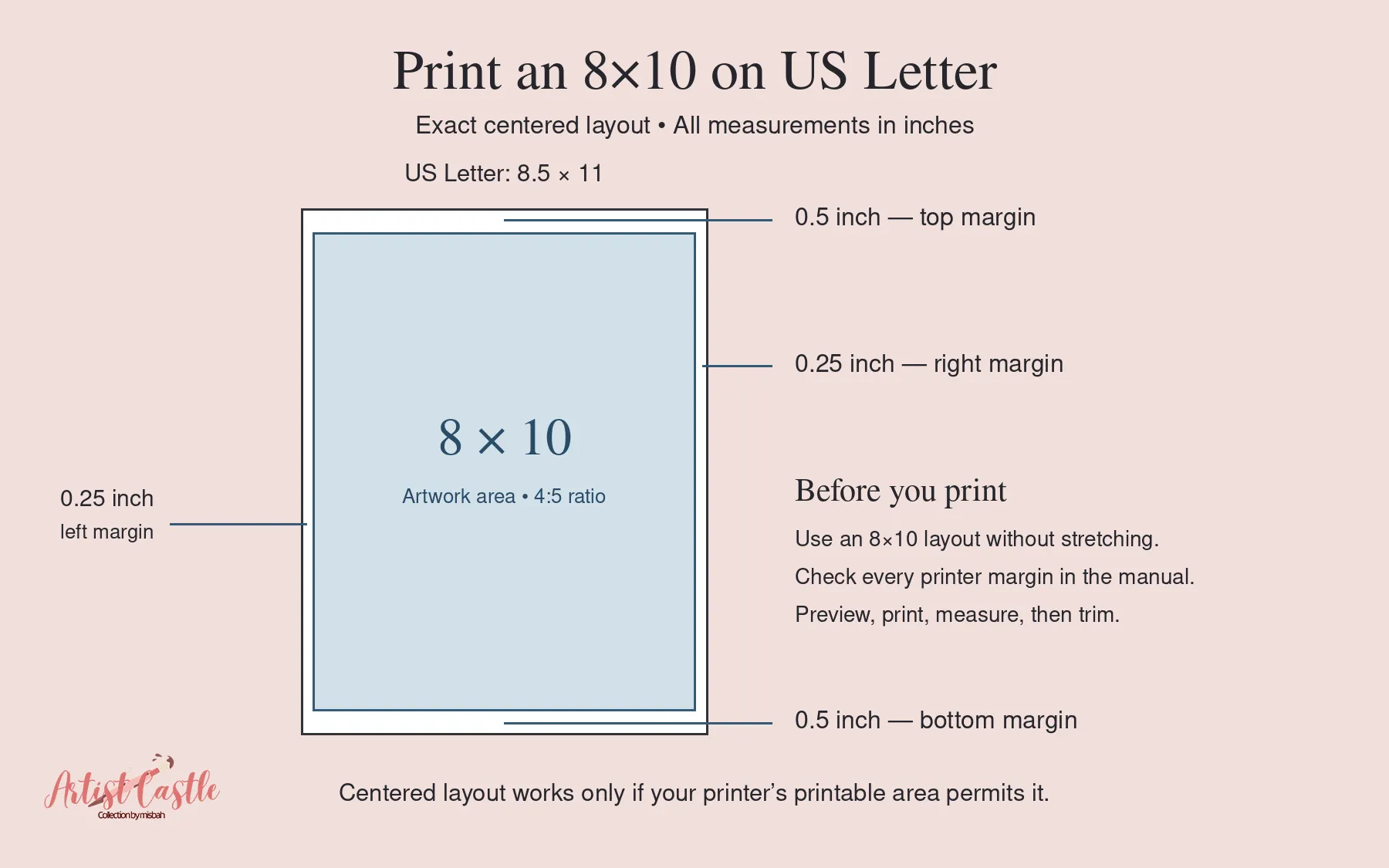
4. Know your margins
An 8×10 image centered on 8.5×11 Letter leaves:
- 0.25 inch on each side ((8.5 − 8) ÷ 2)
- 0.5 inch at the top and bottom ((11 − 10) ÷ 2)
Your printer also has its own minimum margins, so check them in the manual. As one example, Epson’s ET-8500/ET-8550 printable-area page lists a 0.12-inch minimum margin for bordered prints and reduced print quality areas near the top and bottom. It also says you can’t print within 0.8 inch of the bottom edge when using the rear paper feed slot.
Centered, an 8×10 leaves only 0.5 inch at the bottom, so on that feed path part of the image would fall inside the restricted area. Repositioning is an option only if the complete image fits within all of your printer’s margins. If it doesn’t, use a supported feed path or choose another layout, such as paper in a size your printer supports or a smaller print.
5. Trim carefully
Print, let the ink dry as the paper’s instructions advise, then trim to size with a ruler and trimmer or craft knife. If your layout includes crop marks, follow them.
Framing your print
Whatever paper you choose, keep it from touching the glass. The Library of Congress says that when framing paper-based items, the artwork should not touch the glazing. It recommends a sufficiently thick window mat or spacers along the perimeter. This applies to paper artwork generally.
If you use a mat, plan your print size around the mat opening so the edges stay covered.
The Library also notes that light exposure fades and discolors paper over time, and recommends keeping framed items out of direct sunlight. That’s a good reason to hang your wall art away from sunny windows. Its guidance is written for library collections, so treat it as a conservative standard rather than a requirement for home decor.
FAQ
Can I print wall art on cardstock?
It depends on the specific stock. Inkjet-coated cardstock and uncoated craft cardstock are different products, and results vary with the coating, your printer, and your settings. Check your printer’s manual for supported thickness and tray, confirm the packaging says the stock is compatible with your printer type, and print one sheet first.
What gsm should I buy?
There’s no single number. Use the manufacturer-stated gsm on the paper and keep it within your printer’s stated limits.
Matte or glossy for a framed print?
Matte is a sensible starting point, since it tends to reflect less light. Glossy can look richer. Either way, use a mat or spacers so the paper doesn’t touch the glass.
Can I print a 2:3 file as an 8×10?
Yes, with a crop or borders. Never stretch it to fit. See the ratio section above.
Does “Actual Size” make my JPG 8×10?
No. Place the image inside an 8×10-inch area first, then crop or add borders without stretching.
Do I need to match the paper-type setting?
Yes. Choose the media setting recommended for your specific paper and printer, since it affects how ink is applied.
Ready to put this into practice? Browse the Printable Wall Art category at ArtistCastle.