If you’ve been browsing craft shops online, you’ve probably run into the term “digital paper” and wondered what you’re actually paying for. Is it mailed to you? Is it a physical pad you print yourself, or something else entirely?
Here’s the short answer: digital paper is a computer file — usually a JPG or PNG — that’s designed to look like a sheet of decorative paper. You buy it, download it, and either print it at home or use it directly in a digital project. Nothing arrives in the mail.
That raises a lot of follow-up questions, though: what file do you get, how do you open it, can your printer even handle it, and what’s the deal with “seamless” designs? This guide walks through all of it, starting from the basics and ending with the practical stuff — printing, licensing, and what you can actually make with it.
TOC
- Digital Paper vs. Traditional Scrapbook Paper
- What Do You Actually Get When You Buy Digital Paper?
- Understanding Digital Paper Sizes and Resolution
- Is All Digital Paper Seamless?
- How to Print Digital Paper at Home
- What Can You Make With Digital Paper?
- Personal Use vs. Commercial Use
- Frequently Asked Questions About Digital Paper
- Do I need Photoshop to use digital paper?
- Can I print a 12×12 digital paper on my home printer?
- What's the difference between JPG and PNG digital paper?
- Does digital paper expire or can I redownload it?
- Can I sell items I make with digital paper?
- Is digital paper the same quality as printed scrapbook paper?
- Ready to Start Creating?
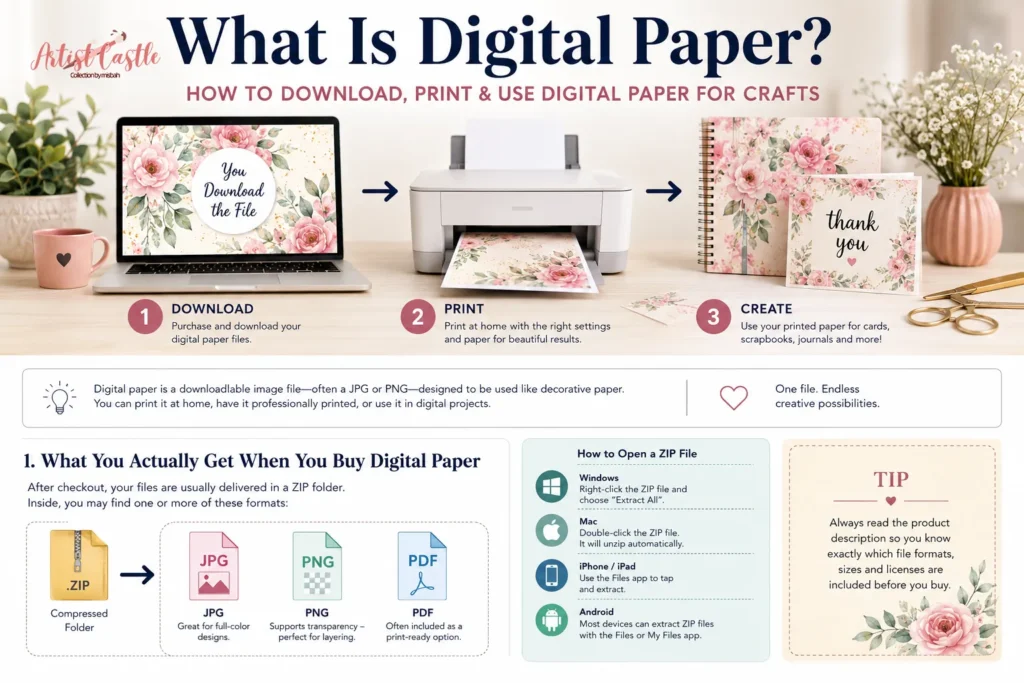
Digital paper at a glance: Digital paper is a downloadable image file designed for digital use or printing. It commonly comes as JPG or PNG files, sometimes packaged in a ZIP folder. Unlike physical scrapbook paper, nothing is shipped to you—you choose how and where to print or use the design.
Digital Paper vs. Traditional Scrapbook Paper
Physical scrapbook paper is a printed, pre-cut sheet you buy in a pack. Digital paper is the design file behind that idea, minus the printing and cutting. You’re buying the artwork itself, not a finished product.
That has a few practical effects. You can print the same design as many times as you want (subject to the license — more on that later), resize it, or use it purely on screen without ever touching a printer. You’re also not limited to one sheet size or one paper texture — you choose the paper stock and the size when you print, which gives you more control than a pre-made pad does. The trade-off is that you’re doing a bit more work upfront: downloading, printing, and cutting instead of just opening a pad and grabbing a sheet.
What Do You Actually Get When You Buy Digital Paper?
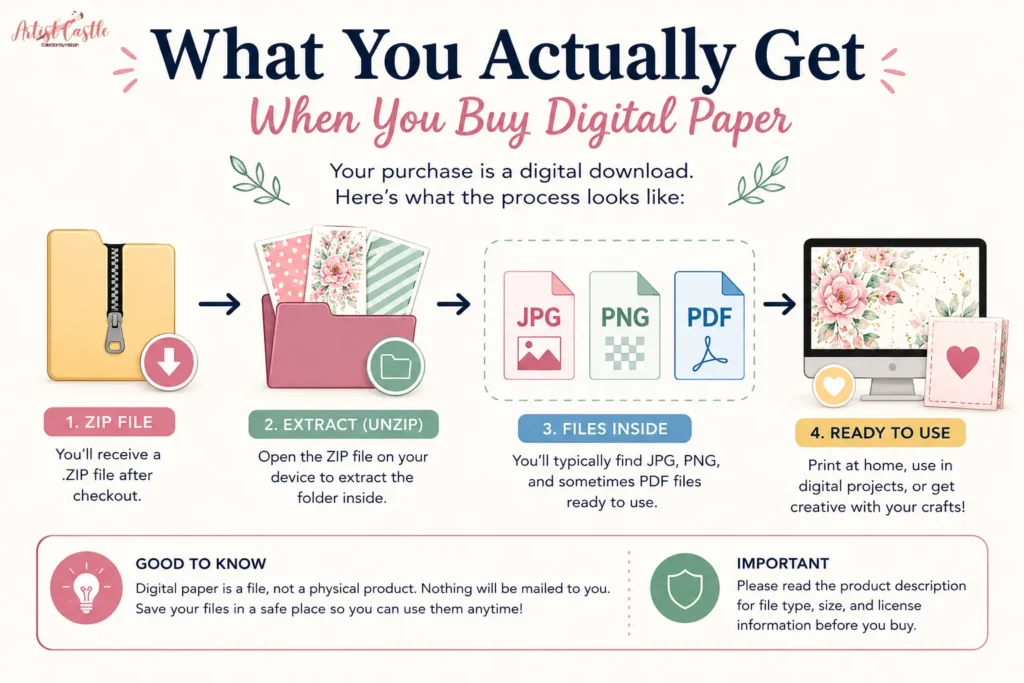
After checkout, you’ll get a download — usually a .zip file, which is just a compressed folder holding multiple files at once. Inside, you’ll typically find one or more image files in JPG or PNG format, and sometimes a PDF version too.
- JPG files are common for photo-style or full-color designs. They’re smaller in file size but don’t support transparency.
- PNG files support transparency, which matters if the design has cutout shapes or is meant to layer over something else.
- PDF versions are sometimes included specifically for easy home printing, since most printer dialogs handle PDFs predictably.
A .zip folder can look intimidating the first time you see one, but opening it is simple:
- On a computer (Windows or Mac): double-click the file. Windows will usually let you open it directly or offer “Extract All.” On a Mac, double-clicking unzips it automatically into a new folder.
- On a phone or tablet: both iOS and Android now handle
.zipfiles natively in their Files or My Files app — tap the file and choose “Extract” or “Uncompress.” You don’t need to install anything extra for a basic.zip.
Once it’s extracted, you’ll have the actual image files ready to print or use.
Understanding Digital Paper Sizes and Resolution
This is the part that trips up most beginners, so let’s slow down.
An image file is made of pixels — tiny colored squares. A file might be, say, 3600 x 3600 pixels. On its own, that number doesn’t tell you a physical size. Size only exists once you decide how many of those pixels you want packed into each inch of paper, which is what resolution (measured in DPI or PPI) describes.
A 3600 x 3600 pixel image printed at 300 DPI comes out to 12 x 12 inches, because 3600 divided by 300 is 12. Print that same file at 150 DPI, and it would come out to 24 x 24 inches — bigger, but noticeably softer and less crisp, since you’re stretching the same pixels over more physical space.
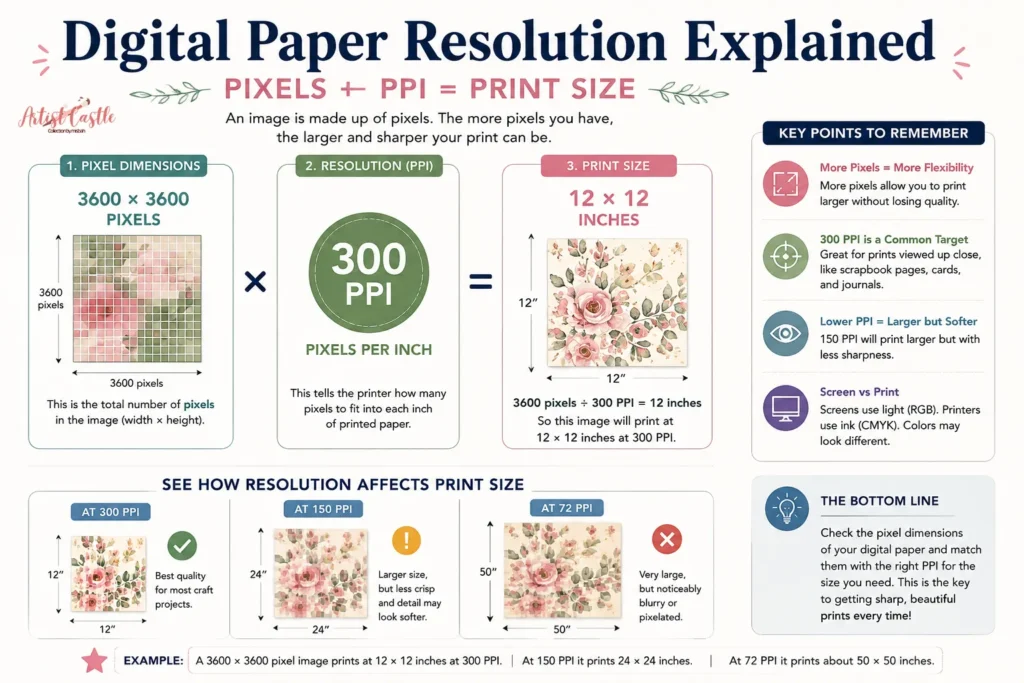
300 DPI is a common, safe target for craft printing because it holds up well at typical close-up viewing distances, like a scrapbook page or a greeting card. But it’s not a magic number that guarantees a perfect print — printer quality, paper choice, and ink all affect the final result too, and some product types (like a large wall print viewed from a distance) can look fine at lower resolution. If a product listing says “300 DPI, 3600 x 3600 px,” it’s telling you the pixel dimensions and the size that combination prints at cleanly — not making a promise about how your specific printer will render it.
Watch out for files labeled 72 DPI, which is a screen-resolution standard, not a print one. Printing a 72 DPI file at the same physical size as a 300 DPI file will look noticeably blurrier, because there simply isn’t enough pixel information packed into the space.

Is All Digital Paper Seamless?
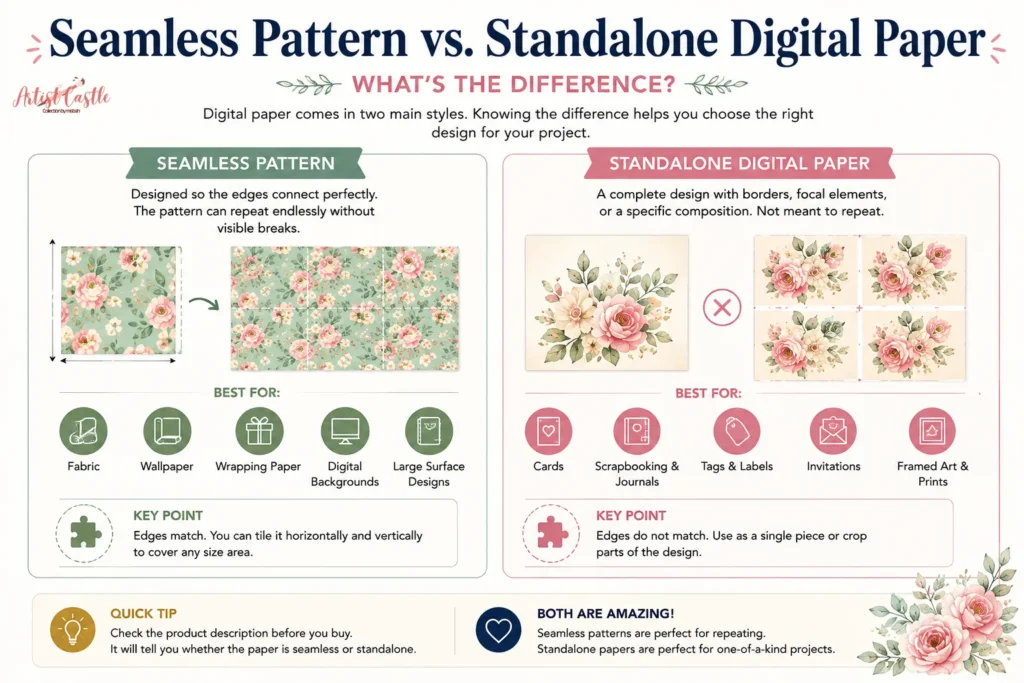
No — and this is worth clearing up, because it’s a common misconception. “Seamless” means the design tiles edge-to-edge without a visible seam, so it can repeat infinitely across a surface — think fabric, wallpaper, or a background that needs to extend beyond one sheet.
A lot of digital paper isn’t built that way, and doesn’t need to be. Plenty of designs are standalone compositions meant to be used exactly as-is on one sheet — a single decorated page for a journal, a one-off card background, a themed sheet with a border and central motif. Neither type is “better”; they’re built for different jobs. A repeating floral pattern is great if you’re covering a large surface or need continuity across multiple pages. A standalone design is great when you want a specific, finished look on a single sheet. Check the product description to see which one you’re getting — it should say either way.
Comparison of seamless repeating digital paper and standalone digital paper designs
How to Print Digital Paper at Home
Choosing the Right Paper
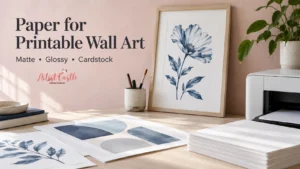
Regular copy paper (around 20 lb / 75 GSM) is thin and absorbs ink unevenly, which leads to bleeding and a flimsy final result — not ideal for something you want to fold, cut, or handle. For craft printing, cardstock in the 65–80 lb range (roughly 160–216 GSM) or a matte presentation paper holds ink better and feels sturdier. Glossy photo paper works too, but it can make colors look more saturated than they appeared on screen, and it shows fingerprints more easily.
Printing 12 x 12 Designs on Letter or A4 Paper
Most home printers load standard Letter (8.5 x 11 in) or A4 paper, and here’s the honest truth: neither of those can fit a full 12 x 12 inch design at its original size. Your options:
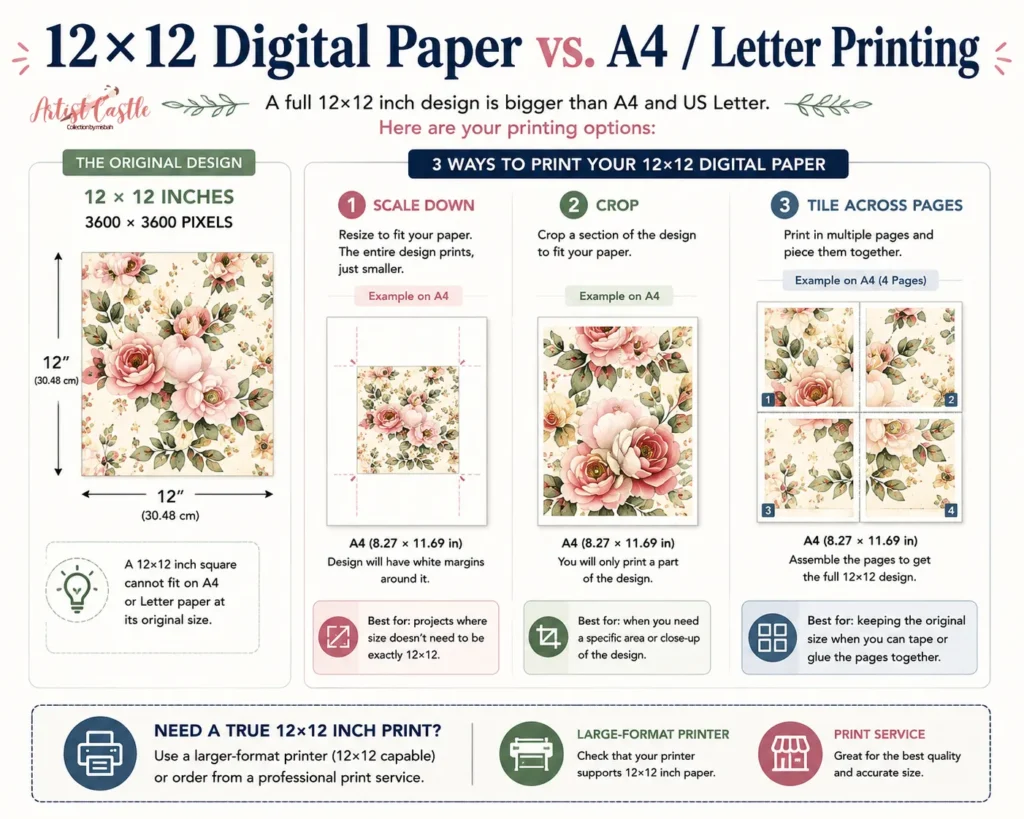
- Scale it down. Your print dialog’s “Fit to Page” or “Scale to Fit” option will shrink the design so it fits on Letter or A4 paper — but note that this changes the final size. A 12 x 12 design scaled to fit an 8.5 x 11 sheet no longer prints as a 12-inch square; it prints smaller, sized to whatever fits on the page.
- Crop a section. If you only need part of the design — a corner motif or a smaller decorative element — cropping it in a free tool like Canva before printing lets you print that section at full resolution.
- Tile it across multiple sheets. Some print software (and some Canva/Word setups) can split a large design across several pages that you then trim and tape together, recreating the full 12 x 12 size from smaller sheets. This works, but takes more setup.
- Use a larger-format printer or print service. If you need the true 12 x 12 size without tiling, a copy shop or online print service with 12 x 12 paper stock will print it at full size in one piece.
None of these require professional design software — Canva’s free plan, or even your operating system’s built-in print dialog, is enough for basic scaling and cropping.
Looking for a design to experiment with?
Browse ArtistCastle digital papers for your next creative project.
Getting Good Color
Colors on screen and colors on paper are never going to match exactly — your monitor displays light, your printer lays down ink, and the two processes just don’t behave identically. Most home printers work fine with standard RGB image files and convert them automatically; you don’t need to manually convert to CMYK unless you’re sending files to a commercial print shop that specifically asks for it. If colors look off, check that your printer’s “high quality” or “photo” print setting is selected rather than a draft or economy mode, which cuts back on ink to save cost.
What Can You Make With Digital Paper?
Once it’s printed (or used straight from the file), digital paper shows up in a lot of places:
- Scrapbooking and journaling — backgrounds, layered accents, pocket page fillers
- Cardmaking — bases, panels, envelope liners
- Gift wrapping — printed at a larger scale or tiled for bigger surfaces
- Junk journals — mixed with ephemera for a layered, collaged look
- Digital planners and invitations — used directly in apps like GoodNotes or design tools, no printing required
- Web and social backgrounds — banners, highlight covers, blog headers
The file works the same whether you’re printing it or dropping it straight into a digital layout — it’s the same asset either way.
Personal Use vs. Commercial Use
This is where a lot of buyers get caught off guard: buying a digital file does not automatically mean you can use it however you like, including selling things made with it. Licensing terms vary by seller and even by individual product, so there’s no universal rule here.
Generally, a “personal use” license covers things like printing for your own scrapbook, your own cards, or gifts you’re not selling. A “commercial use” license — which is often a separate purchase or a different license tier — is what you need if you’re printing items to sell, using the design in a product you’re selling, or using it in client work. Some sellers cap how many finished items you can sell under a given license; others don’t.
The safest approach is simple: read the specific license attached to the product you’re buying, every time. Don’t assume it matches what you’ve seen from other shops or other files, even from the same seller.
Frequently Asked Questions About Digital Paper
Do I need Photoshop to use digital paper?
No. Most digital paper can be printed directly from your phone, tablet, or computer’s default photo viewer and print dialog. Free tools like Canva are enough if you need to crop, resize, or combine designs — professional software isn’t required for basic use.
Can I print a 12×12 digital paper on my home printer?
Yes, but not at its full original size unless your printer accepts 12×12 paper stock. On standard Letter or A4 paper, you’ll need to scale it down, crop a section, tile it across multiple pages, or send it to a print service that carries 12×12 paper.
What’s the difference between JPG and PNG digital paper?
JPG files are smaller and work well for full-color, opaque designs, but don’t support transparency. PNG files support transparent backgrounds, which matters if you’re layering a design over something else or need a cutout shape rather than a solid rectangle.
Does digital paper expire or can I redownload it?
That depends entirely on the shop’s policy — some offer unlimited redownloads tied to your account, others provide a limited-time download link. Check the specific store’s download terms rather than assuming.
Can I sell items I make with digital paper?
Only if your license permits commercial use. A personal-use license typically doesn’t cover selling finished products. Check the license attached to the specific file before making anything for sale.
Is digital paper the same quality as printed scrapbook paper?
It can be, if you print it on suitable cardstock at a good resolution — the design itself is identical either way. The final quality depends more on your printer, paper choice, and print settings than on the fact that it started as a digital file.
Ready to Start Creating?
Once you’ve got a file downloaded, printed on the right paper, and cut to size, digital paper works exactly like the physical version — you just got there through a different process. If you’re browsing for your first pack, look for a product description that tells you the pixel dimensions, whether it’s seamless or standalone, and what license comes with it. That’s really all the information you need to know exactly what you’re getting.
Browse ArtistCastle’s digital paper collection to find your first set.